When you use a touch screen monitor for teaching touch screen tv classroom interactive touch screens for education, you can turn your classroom into a dynamic space. Leading brands like BenQ Board Pro, Promethean, NewLine, SMART, OneScreen, HKMLC Elite, and Samsung Flip Pro offer features such as 4K UHD displays, multi-touch support, and strong safety certifications. You can find models that match your classroom size and budget. Many teachers look for easy installation, bundled educational tools, and reliable performance.
Key Takeaways
Touch screen monitors enhance classroom engagement by allowing multiple students to interact simultaneously, fostering collaboration and teamwork.
Choosing the right screen size and resolution is crucial; aim for displays between 65" and 86" for optimal visibility in most classrooms.
Look for features like multi-touch capability and easy connectivity options to support interactive lessons and group activities.
Regular maintenance, such as cleaning and software updates, keeps your touch screen monitor functioning well and extends its lifespan.
Utilize educational apps and tools, like the Classroom Screen App, to make lessons more interactive and help students stay focused.
Why Interactive Touch Screens for Education Matter
Enhancing Lesson Delivery
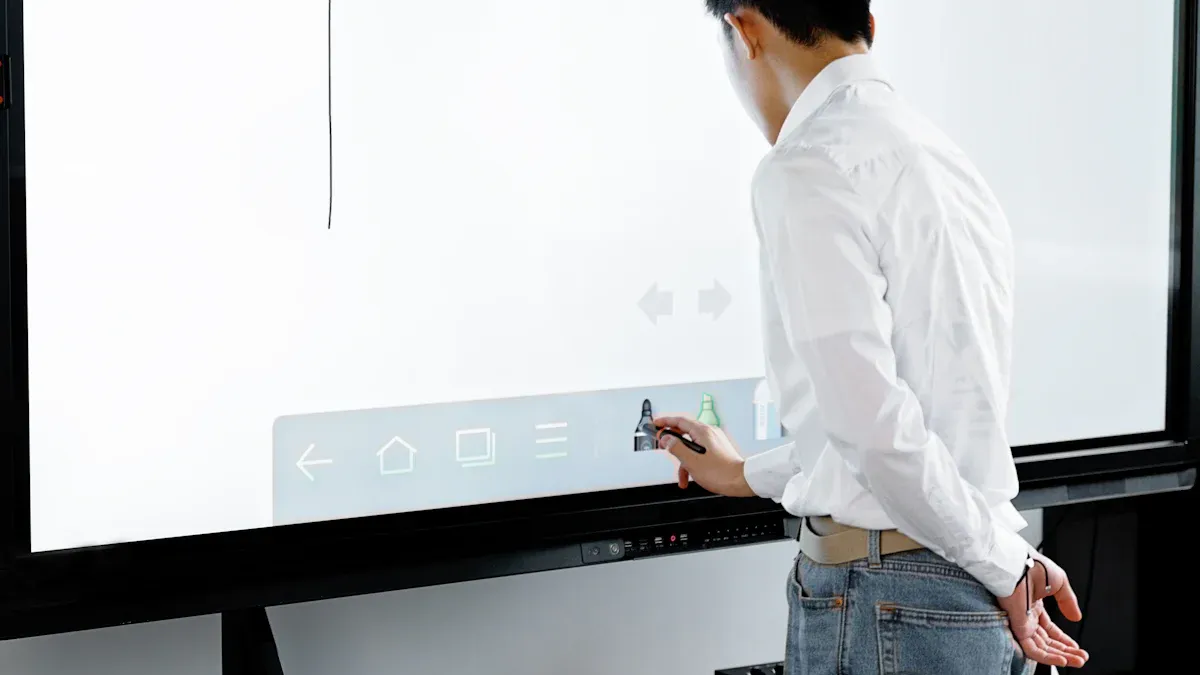
You can make your lessons clearer and more interactive with a touch screen monitor for teaching touch screen tv classroom interactive touch screens for education. These tools let you show videos, draw diagrams, and move objects on the screen with your fingers. You can switch between activities quickly, which helps you keep students focused. Many teachers find that using interactive displays helps them explain ideas in new ways. Research shows that interactive touch screens enhance collaboration and engagement in group learning environments. Multi-touch interfaces also promote joint problem-solving and turn-taking, which are important for building social skills. When you use these screens, you can help students learn together and share their ideas.
Interactive touch screens enhance collaboration and engagement in group learning environments.
Multi-touch interfaces promote joint problem-solving and turn-taking.
Touchscreens foster increased peer collaboration, allowing children to share knowledge and work on group projects.
Boosting Student Engagement
You want your students to pay attention and take part in class. Interactive displays can help you do this. Students enjoy using technology that feels familiar, like tablets or phones. When you use a touch screen, students can come up to the board and join in. Some studies show mixed results about how much touch screens improve learning, but many teachers see students get more excited about lessons.
Study
Findings
Huber et al. (2016)
No significant advantage of touchscreen over traditional methods
Wang et al. (2016)
Positive effect on learning performance after using a touchscreen app
Aladé et al. (2016)
No performance difference between touchscreen and video learning
Parish-Morris et al. (2013)
Negative impact of touchscreen learning on child performance
Tip: Try using interactive games or quizzes on your display to keep students interested.
Fostering Collaboration
You can help students work together by using interactive touch screens. These displays let several students use the board at the same time. Students can solve problems, share ideas, and create projects as a team. Interactive displays also make it easy to share creations and discuss them with the whole class. You can move the screen around the room or use it for group brainstorming sessions. This makes learning more social and fun.
Interactive touch screens allow multiple users to engage at once, leading to higher engagement.
Educational games on multi-touch displays stimulate collaboration and knowledge sharing.
Students can explore and create together, just like on their own devices.
Key Features of Touch Screen TV Classroom Solutions
Screen Size and Resolution
You want a display that fits your classroom and helps students see clearly. Most classrooms use screens between 66" and 95". Larger rooms may need displays up to 120". You can move a 65” screen easily, while a 75” screen works well on a wall or trolley. Bigger screens, like 120” or 200”, stay in one place and need a projection surface.
Size Range
Description
66" - 95"
Suitable for various classroom settings
96" - 105"
Ideal for larger classrooms
106" - 120"
Designed for fixed spaces, providing ample viewing area
High resolution, such as 4K UHD, makes text and images sharp. This helps students follow lessons and reduces eye strain.
Multi-Touch Capability
You can boost collaboration with multi-touch screens. Most models offer 10 to 20 touch points. This means several students can use the board at once for group work or games.
Monitor Size
Touch Points
24"
10
86"
20
Multi-touch lets you run interactive activities and keeps students engaged.
Device and Software Compatibility
You want your touch screen to work with your devices and teaching software. Most screens run on Android or Windows. Some offer hybrid systems for more flexibility. You should check for HDMI, USB, wireless, and Bluetooth options. This helps you connect laptops, tablets, and other classroom tech.
Compatibility Issue
Description
Operating Systems
Android, Windows, or hybrid systems
Software Integration
Works with teaching software
Connectivity Options
HDMI, USB, wireless, Bluetooth
Tip: The Classroom Screen App helps you use timers, noise detectors, and drawing tools. You can display instructions, run polls, and share resources. This app supports different learning styles and works for in-person or remote lessons.
Response Time
Fast response time matters. Modern screens respond in under 10 milliseconds. Slow screens can frustrate students and interrupt lessons. Quick touch response keeps activities smooth and interactive.
Modern interactive displays respond in less than 10 milliseconds.
Delays can cause lag and disrupt learning.
Price and Value
You can find touch screens for classrooms from $854 to $4,999. Features like 4K resolution, advanced touch technology, and accessibility tools affect the price. You should choose a model that fits your budget and teaching needs.
Prices range from $854 to $4,999.
Features like 4K UHD, storage, and accessibility tools add value.
A touch screen monitor for teaching touch screen tv classroom interactive touch screens for education gives you the tools to create engaging lessons, support group work, and manage your classroom more easily.
Price Comparison
You need to consider your budget. Prices for interactive displays range from $854 to $4,999. Newline Interactive and ViewSonic often offer competitive prices with strong features. Promethean and ClearTouch may cost more, but they include extra tools and training. You should balance price with the features you need most.
Newline Interactive: Budget-friendly, good for schools with limited funds.
ViewSonic: Affordable, offers high resolution and software.
Promethean: Higher price, includes advanced collaboration tools.
ClearTouch: Mid to high price, comes with training and support.
Classroom Suitability
You want a touch screen that fits your classroom size and teaching style. Promethean works well for group projects and interactive lessons. Newline Interactive fits classrooms that need easy sharing and whiteboarding. ClearTouch is great if you want simple setup and support for hybrid learning. ViewSonic suits teachers who want clear visuals and reliable software.
Small classrooms: Newline Interactive or ViewSonic.
Large or collaborative classrooms: Promethean or ClearTouch.
Hybrid or remote learning: ClearTouch and Promethean offer strong support.
A touch screen monitor for teaching touch screen tv classroom interactive touch screens for education helps you choose the right tool for your needs. You can compare features, prices, and classroom fit to make the best choice for your students.
Choosing the Right Touch Screen Monitor for Teaching
Matching Features to Teaching Needs
You want a display that fits your teaching style and classroom activities. Some features make a big difference in how you teach. A high-quality display gives you bright colors and sharp images, which helps students see details clearly. Multitouch capabilities let several students interact with the screen at once. This is great for group work and hands-on lessons. USB-C connectivity makes it easy to connect your devices and switch between them quickly.
Feature
Description
High-Quality Display
Better color and crisp images for a clear teaching experience.
Multitouch Capabilities
Lets many students join in at the same time for interactive lessons.
USB-C Connectivity
Simple and fast connection to computers and other devices.
Tip: Think about which features will help you reach your lesson goals and keep students involved.
Considering Classroom Size and Layout
Classroom size and layout affect which monitor works best for you. Large classrooms need bigger screens so everyone can see. Usability and interactivity matter more than just size. Brightness and contrast help students see the screen, even in bright rooms. Interactive displays are easier for all students to reach, including those with physical disabilities. Multi-touch features boost participation and make lessons more fun.
Large rooms need bigger displays for clear visibility.
Usability and interactivity are key for student engagement.
Brightness and contrast improve readability in well-lit spaces.
Layout affects how easily students can access the screen.
Multi-touch features encourage group work and sharing.
Balancing Budget and Performance
You want the best value for your school. You can use a hybrid approach by combining interactive panels for teaching and separate displays for recognition or announcements. Assess your needs and ask teachers and staff for input before you buy. Make sure your school has strong network connections and security. Plan how you will use the displays and involve your community. Give teachers training and support so everyone can use the technology well.
Note: Careful planning helps you get the most from your touch screen monitor for teaching touch screen tv classroom interactive touch screens for education.
You can set up your classroom display for the best results by following a few simple steps. First, choose a screen size that lets every student see the lesson clearly. Large screens work well for bigger rooms, while smaller screens fit small spaces. Make sure the touch sensitivity feels smooth and responds quickly to your touch. Connect your display to laptops, tablets, or projectors using HDMI, USB, or wireless options. Pick a model that can handle busy classroom use and will last for years.
Use displays with easy connectivity to other devices.
Choose durable screens for high-traffic areas.
Tip: Place your display where students can reach it easily. This helps everyone join in group activities.
Maintenance and Care
You can keep your display working well with regular care. Clean the screen with a soft, lint-free cloth and a little water or mild detergent. Check for cracks, dead pixels, or lines that might block the view. Update your interactive software often to fix bugs and get new features. Lower the screen brightness and use a screen saver to prevent heat buildup. Give your display short breaks during the day to help it last longer.
Use a soft, lint-free cloth dampened with water or mild detergent to clean the screen surface.
Inspect for Physical Damage
Check for issues like cracked screens, dead pixels, or lines that could affect display clarity.
Keep your software up-to-date for best performance.
Updates add new tools and fix problems.
Note: Simple habits like cleaning and updating help your touch screen monitor for teaching touch screen tv classroom interactive touch screens for education stay reliable.
Maximizing Impact with Classroom Screen App
You can make lessons more interactive with the Classroom Screen App. This app gives you tools like timers, noise detectors, and drawing boards. You can show instructions, run polls, and share resources with your class. Students can see lesson steps and join activities right from the display. Try using the app for group quizzes or brainstorming sessions. You help students stay focused and make learning fun.
Use timers to manage activities.
Display instructions for easy reference.
Run polls to check understanding.
Draw diagrams and brainstorm ideas.
Tip: Explore all the features in the Classroom Screen App to find what works best for your teaching style.
You have many choices when selecting a touch screen monitor for teaching touch screen tv classroom interactive touch screens for education. Each model offers unique features that help you create engaging lessons. Think about your classroom size, your teaching style, and your budget. Review the comparison and feature sections to find the best fit.
The right interactive display can make your lessons easier, more fun, and collaborative.
Consider your needs before making a decision.
Check which features match your teaching goals.
Choose a solution that supports student success.
FAQ
What size touch screen monitor works best for a classroom?
You should choose a screen between 65" and 86" for most classrooms. Larger rooms may need bigger displays. Make sure every student can see the screen clearly from their seat.
Can you connect your laptop or tablet to a touch screen monitor?
Yes, you can connect most laptops and tablets using HDMI, USB, or wireless options. Many monitors support screen mirroring and touch control for easy sharing.
How do you clean and care for a touch screen monitor?
Use a soft, lint-free cloth with water or mild detergent. Avoid harsh chemicals. Clean the screen gently to prevent scratches. Check for updates to keep your device running smoothly.
Do touch screen monitors support educational apps?
Most interactive displays support popular educational apps. You can use whiteboard tools, timers, and quiz apps. Some monitors come with built-in software for teaching.
Are touch screen monitors safe for students?
Manufacturers design these monitors with safety in mind. Many use germ-resistant glass and rounded edges. Always follow the user manual for safe use.
Click the button to contact us for more information