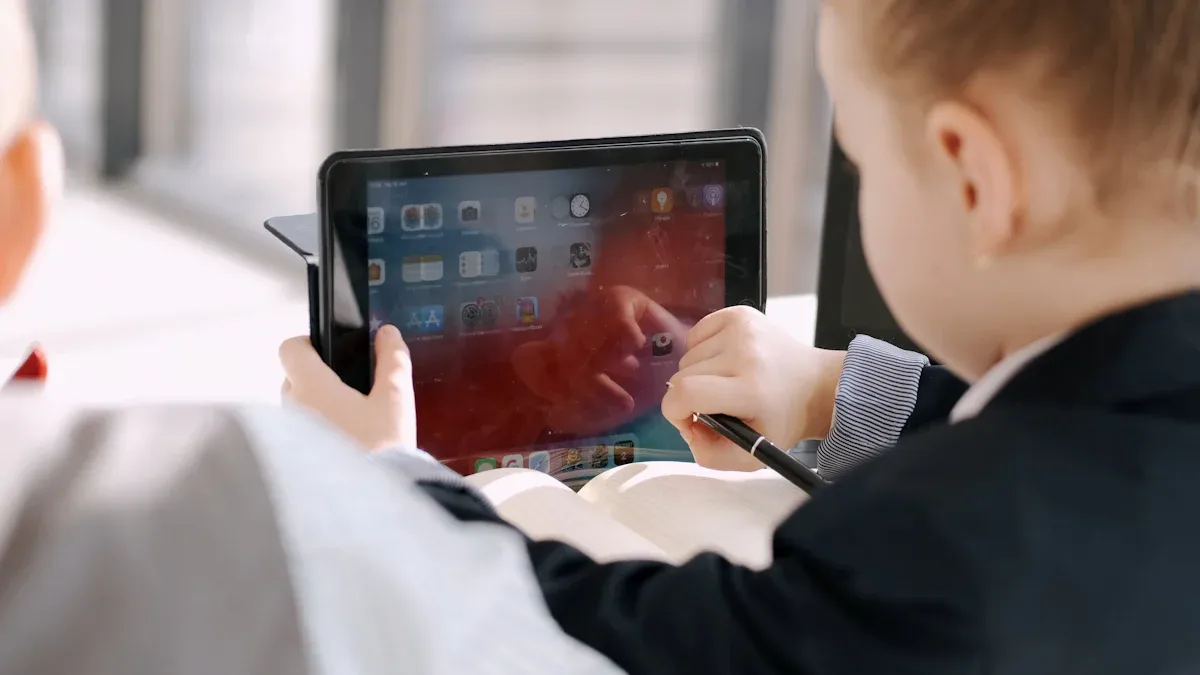
You want everyone in your classroom to see the screen clearly. Choose a size that fits your room and makes content easy to read from the back row. Bigger screens work better for larger classes. High resolution matters, too. A display with high clarity, like those from Avocor, makes images and text sharp. This brings your lessons to life and helps students stay engaged. If you use videos or detailed graphics, a higher resolution will make a big difference.
Tip: Try to match the screen size to your classroom size. A screen that is too small can make it hard for students to follow along.
Touch Technology and Sensitivity
Touch technology changes how you and your students interact with the screen. Some screens respond to pressure, while others use light or electrical fields. Here’s a quick look at the main types:
Touch Technology
Sensitivity Description
Advantages and Limitations
Resistive Touch
Detects pressure applied to the screen, compatible with various input methods.
Affordable, works with non-conductive inputs, but limited to single-touch functionality.
Infrared Touch
Uses an invisible grid of infrared beams; detects touch when beams are interrupted.
High durability, multi-touch functionality, but performance can be poor in direct sunlight.
Optical Imaging Touch
Detects touch using infrared cameras and light strips; supports input from various objects.
Versatile input options, durable, but has a bulkier design.
Projected Capacitive Touch
Detects changes in an electrical field when conductive objects touch the surface.
High-speed response, multi-touch capabilities, but more expensive and limited scalability.
Touch sensitivity affects how smoothly you can write, draw, or move objects on the screen. When the screen responds quickly, you and your students can interact without frustration. This makes lessons more fun and helps everyone stay focused.
Students actively explore and discover, leading to deeper engagement with the subject matter.
Physical interaction improves memory retention
Engaging physically in learning activities can lead to retention rates as high as 75%.
Supports diverse learning preferences
Tactile materials cater to kinesthetic learners and students with special educational needs, making learning more accessible.
10 Point Touch Screen for Schools
A 10 point touch screen for schools lets many students use the screen at the same time. This feature is perfect for group work and interactive lessons. Here’s why teachers love it:
Active Learning: Students get involved by touching and moving things on the screen.
Collaboration: Several students can work together, which builds teamwork.
Demonstration: Students can show their ideas to the class, making lessons more lively.
Experimentation: Hands-on activities in science or math become easier and more fun.
A 10 point touch screen for schools uses special technology so up to ten users can write or draw at once. You can use fingers, styluses, or both. This makes it easy for everyone to join in, whether you’re brainstorming or solving problems together.
Feature
Description
Touch Technology
10-point IR touch technology allows multiple users to interact simultaneously
Interaction Method
Users can write or draw using styluses or fingers, or both at the same time
Durability
You want your interactive touch screen to last for years. Look for screens made with strong materials that can handle daily use. Many classroom screens have a rated lifespan of 50,000 hours, which means they can last about 10 years, or even up to 27 years if you use them for 7 hours each day.
Lifespan Metric
Value
Rated Lifespan
50,000 hours
Average Lifespan in Years
10 years
Potential Usage (7 hours/day)
27 years
A durable screen saves you money and trouble in the long run. It also keeps your lessons running smoothly, without unexpected breakdowns.
Audio and Connectivity
Good audio helps everyone hear videos and presentations. Some screens, like the Clevertouch Max 2 and Pro Series, come with powerful built-in speakers. This means you don’t need extra equipment for sound.
Product Name
Audio Features
Additional Features
Clevertouch Max 2
Superior built-in audio
Antibacterial glass, NFC user profiles, 50-point touch
Clevertouch Pro Series
Powerful audio
4K touch, NFC login, Google/Microsoft integration
Clevertouch Max 2
Built-in audio
USB-C charging, multiple UI options
For connectivity, you should check for these options:
HDMI
USB ports
Wi-Fi
Bluetooth
These connections let you link the screen to laptops, tablets, and the internet. You can share content easily and use different devices during your lessons.
Compatibility
Your touch screen should work with the devices you already have. Most modern screens support Windows, Mac, and Chrome OS.
Operating System
Compatibility
Windows
Yes
MAC
Yes
Chrome OS
Yes
Some screens offer USB-C connections, which let you use one cable for power and data. This makes setup simple. Older screens may need two cables, which can be messy. Many screens also support syncing with classroom platforms, so you can use your favorite teaching tools without problems.
Allows for a single cable solution for data and power, simplifying connections with newer devices.
Older Monitors
Require two cables for functionality, complicating integration with existing technology.
Multi-device Support
Touch screen monitors can sync with platforms like myViewBoard Classroom, enhancing classroom interactivity.
Cost
Cost matters when you choose a touch screen for your classroom. Prices depend on several things:
Factor
Description
Touch Technology
Different technologies (IR vs. Capacitive) affect both price and user experience.
Screen Resolution
Higher resolutions (Full HD vs. 4K UHD) lead to increased costs due to better clarity and detail.
Integrated Hardware & Software
Advanced processors and pre-installed software can significantly raise the price of monitors.
Build Quality & Certification
Higher quality materials and certifications increase durability and compliance, impacting cost.
Brand Reputation & Support
Established brands often charge more due to better support and warranty services.
You should balance your budget with the features you need. Sometimes, paying a bit more for a 10 point touch screen for schools or a higher resolution pays off in the long run. Think about what features matter most for your teaching style and your students’ needs.
You might see a touch screen monitor for teaching in many modern classrooms. These monitors work like giant tablets. You can write, draw, and move things around with your fingers or a stylus. Most models, like those from Dell or Asus, offer bright displays that stay clear even when sunlight fills the room. You don’t need a projector, so you avoid shadows and messy cables. Touch screen monitors often support multi-touch, letting several students interact at once. You get regular software updates, and you rarely need to calibrate the screen. Maintenance costs stay low, which helps your school save money over time.
Interactive whiteboards have been around for years. You connect them to a computer and a projector. You can touch the board to control lessons, but you might notice shadows when you stand in front of the projector. Sometimes, you need to dim the lights so everyone can see the screen. These boards often require frequent calibration, which can slow you down. Brands like SMART Board and Promethean ActivBoard are popular in schools. Interactive whiteboards usually support dual touch, so only two users can interact at once. Maintenance costs run higher because projectors need regular care.
Interactive Touch Screen for Educ
If you want something even more advanced, you can try an interactive touch screen for educ, like a flat panel. These panels look like big TVs with touch features. You get high-definition visuals and multi-touch support. Brands such as Clevertouch and BenQ make these panels. You don’t need a projector, and you get a crisp image in any lighting. Interactive panels help you teach students with different learning styles. You can use assistive technology for students with special needs. Lesson delivery becomes faster, and you can switch between apps with a tap.
Tip: Interactive touch screens encourage students to think critically and work together. You can support every learner, no matter their style.
Pros and Cons
Let’s look at the main pros and cons of these devices:
Interactive whiteboards cost more over time and need more maintenance.
Touch screen monitors and panels cost more at first, but you save money later.
You might need training and technical support for new devices.
You can choose the type that fits your classroom best. Each option brings something special to your teaching.
Practical Considerations
Installation
You want your interactive touch screen monitor set up quickly and safely. Most screens come with wall mounts or stands. Check if your classroom walls can support the weight. Some schools hire professionals for installation, which saves time and prevents mistakes. Make sure you have enough power outlets nearby. If you plan to move the screen between rooms, look for models with wheels or portable stands.
Tip: Ask your IT team to help with setup. They can make sure everything connects and works right from the start.
Training and Support
Learning new technology feels easier when you have the right help. Many brands offer resources to guide you. Here’s what you might find:
You can use quick start guides or watch video tutorials. Some companies even offer workshops and full training programs. If you run into problems, technical support is just a call or email away.
Multi-User Features
Interactive touch screens let your whole class join in. You can write, move, and resize objects at the same time as your students. Some screens let you save everyone’s work or share screens wirelessly. Here are some features you might see:
Active learning and collaboration for all students.
Fast, whole class access
Connect unlimited students to lessons with two clicks.
Controls for active learning
Switch to “student-based navigation” for personalized pace.
Screen Share without limits
Wireless sharing from any device on any network.
These features help everyone stay involved and make lessons more fun.
Brightness and Viewing Angles
You want every student to see the screen, no matter where they sit. Choose a monitor with high brightness and wide viewing angles. This way, the display stays clear even in bright rooms. Students at the sides or in the back will not miss out.
Internet and Security
A strong internet connection keeps your lessons running smoothly. Make sure your monitor connects to your school’s secure Wi-Fi or wired network. Security matters, too. Check the display’s settings and connect it to your school’s device management system. Some screens let you update software and monitor devices remotely, which keeps everything safe and up to date.
Secure and fast broadband connection via cable or wireless.
Security features
Set up security settings and connect to Device Management Solution (DMS).
Remote monitoring and control
Allows for school-wide updates and communications.
Note: Good security protects your students’ information and keeps your devices working their best.
Selection Steps
Assess Needs
Start by figuring out what you want your interactive touch screen to do in your classroom. Think about your teaching goals and how technology can help you reach them. Here’s a simple way to break it down:
Set Your Educational Goals Decide what you want students to achieve with the touch screen. Do you want more group work? Are you hoping for better engagement during lessons?
Pick the Right Size and Resolution Look at your classroom. Will everyone see the screen clearly from their seats? Choose a size and resolution that fits your space and makes everything easy to read.
Check Touch Technology Some screens react to a light touch, while others need more pressure. Pick one that feels natural for you and your students.
Look for Multi-Touch If you want students to work together, make sure the screen supports multi-touch. This lets several students use the screen at once.
Review Connectivity Options Think about what devices you already use. Make sure the screen can connect to your laptops, tablets, or other tech.
Consider Durability Classrooms can get busy. Choose a screen with a tough, scratch-resistant surface that can handle daily use.
Check Software Compatibility Make sure the screen works with the teaching apps and programs you already use.
Ask About Support and Warranty Find out if the company offers good customer support and a strong warranty. This can save you trouble later.
Tip: Write down your must-haves and nice-to-haves. This list will help you stay focused when you start comparing options.
Compare Features
Now, look at different models and see how they stack up against your needs. Make a table or checklist to keep things organized. Here’s an example:
Feature
Model A
Model B
Model C
Screen Size
65"
75"
86"
Resolution
4K
1080p
4K
Touch Points
10
20
10
Connectivity
HDMI, USB-C
HDMI, USB
HDMI, USB-C
Durability
High
Medium
High
Software Compatibility
Yes
Yes
Limited
Warranty
5 years
3 years
5 years
Price
$$$
$$
$$$$
Check off which features matter most to you. Maybe you need a 10 point touch screen for schools, or you want the best audio. Use your list from the last step to guide your choices.
Note: Don’t get distracted by fancy extras you won’t use. Focus on what will make your teaching easier and more fun.
Review Brands
Not all brands are the same. Some offer better support, while others have more reliable products. Here’s how you can check:
Read Reviews: Look for feedback from other teachers and schools. See what they like and what problems they had.
Ask Around: Talk to your school’s IT team or other teachers. They might have experience with certain brands.
Check Support: See if the brand offers training, quick start guides, or a help desk. Good support can make a big difference.
Compare Warranties: A longer warranty usually means the company trusts its product.
Brand Name
Support Quality
Warranty Length
Training Resources
User Reviews
Clevertouch
Excellent
5 years
Yes
⭐⭐⭐⭐⭐
BenQ
Good
3 years
Yes
⭐⭐⭐⭐
SMART Board
Good
3 years
Yes
⭐⭐⭐⭐
Promethean
Very Good
5 years
Yes
⭐⭐⭐⭐⭐
Tip: Choose a brand that stands behind its products and helps you learn how to use them.
Decide
You’ve done your homework. Now it’s time to make your choice. Here’s a quick checklist to help you decide:
Does the screen fit your classroom and teaching style?
Can your students use it easily?
Will it last for years?
Does it work with your current devices and software?
Is the price right for your budget?
Will you get help if something goes wrong?
If you can answer “yes” to most of these, you’ve found a winner. Place your order and get ready to bring your lessons to life!
Congratulations! You’re on your way to creating a more interactive and engaging classroom.
You now have a clear path to picking the best interactive touch screen monitor for your classroom. Here’s a quick recap:
List your must-have features.
Compare models and brands.
Check for support and warranties.
Match your choice to your teaching style and budget.
Remember, the right screen can make your lessons more fun and engaging. Take your time, ask questions, and choose what works best for you and your students. You’ve got this!
FAQ
How do you clean an interactive touch screen monitor?
Use a soft, dry microfiber cloth to wipe the screen. For tough spots, dampen the cloth with water. Never spray liquid directly on the screen. Avoid harsh cleaners or paper towels. Keep your screen looking new with regular gentle cleaning.
Can you use any stylus or finger on the screen?
Most screens let you use your finger or a basic stylus. Some models work best with special pens. Check your monitor’s manual for details. If you want to avoid scratches, use a stylus with a soft tip.
What should you do if the touch screen stops responding?
First, restart the monitor. If that does not work, check the cables and connections. Try cleaning the screen. If you still have problems, contact your school’s IT team or the manufacturer’s support line.
Do you need special software to use the monitor?
Most monitors work with standard classroom apps and programs. Some brands include extra teaching tools. You can use your favorite apps, but check for compatibility before you buy. Many screens support updates for new features.
How many students can use the screen at once?
A 10 point touch screen lets up to ten students interact at the same time. Some advanced models support even more. This feature helps with group activities and makes lessons more engaging for everyone.
Click the button to contact us for more information